
Minecraft build guide

A first-build guide to how to use litematica

If you are learning how to use litematica, start with a small schematic and treat its projection as a placement guide, not an automatic builder. This walkthrough takes you from checking your setup to placing the final blocks.

Block-built Minecraft creation

The short workflow

Think of the process as loading a design, aligning its projection, and building against it.

  1. 1

    Prepare the game

    Use Minecraft Java Edition with a Fabric Loader, Litematica, and MaLiLib combination compatible with your game version.

  2. 2

    Load and position

    Open a compatible schematic, create a placement, and move its origin until the projection sits where you want the build.

  3. 3

    Build and verify

    Place blocks yourself, work through the structure in manageable sections, and compare the result with the projection.

Prerequisites

Confirm these before troubleshooting the schematic itself. A file cannot display correctly if the mod setup has not loaded.

You must have

Without every one of these the route does not run.

  • Minecraft Java Edition installed

    Litematica is a Java Edition mod, not a Bedrock add-on.

  • Fabric Loader for your chosen Minecraft version

    Launch the Fabric profile rather than an unmodded profile.

  • Litematica and its MaLiLib dependency

    Choose releases compatible with the same Minecraft version.

  • A schematic file you are permitted to use

    Check its format and keep the original file as a backup.

Nice to have

Skip any of these and the route still works — they only make it faster.

  • A test world with room for the projected build

    A flat creative world makes your first alignment easier to inspect.

  • A list of the blocks needed for survival building

    Gathering materials first reduces interruptions but does not affect loading.

Related guides for the next question

These guides cover the mod itself and two common routes for getting a design into schematic form.

Numbered steps

Follow this sequence in a test world before attempting a large survival build.

Minecraft schematic-building guide illustration

Install, launch, and check the menu

Put compatible Litematica and MaLiLib files in the Minecraft mods folder used by your Fabric installation. Start the Fabric game profile and open a world. Use Litematica’s configured menu key to check that the mod loaded; if a key does nothing, inspect the game’s controls for a conflict rather than assuming the file is broken. Menu names and default bindings can vary by mod version.

FIRST CHECK

If the Litematica menu is unavailable, fix the installation before trying to load a schematic.

Load the file and create a placement

Place your schematic where the mod can find it, or navigate to it through the schematic-loading menu. Select the file and load it, then create or enable a placement. Loading a design and placing its projection are separate actions: a file can appear in the loaded-schematics list while nothing is yet visible in the world. If the file is in a different schematic format, confirm that your installed version can read it before changing its extension.

FILE CHECK

Renaming a file does not convert its internal schematic format.

Align the projection

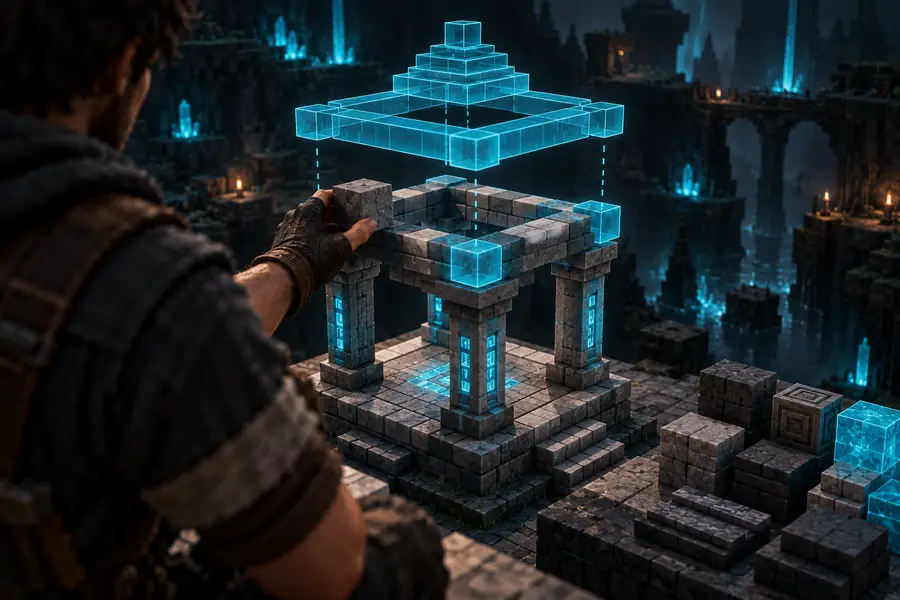
Stand near the intended build site and adjust the placement origin until the projected footprint matches the terrain. Check orientation, height, and clearance on every side before setting down blocks. A projection that looks absent may simply be far away, below ground, or hidden by a visibility setting. For a large design, inspect the footprint from several angles and consider showing a limited layer range while you build.

BEFORE BUILDING

Test the origin and rotation with a distinctive corner before committing materials.

Place blocks and compare

Use the projected blocks as a reference and place real blocks in the world. Start at a clear corner or foundation layer, then advance in small sections so mistakes are easy to locate. Where available in your version, use Litematica’s material and verification views to compare requirements with progress. Treat any automated placement features as separate, version-dependent controls; they are not needed for this basic tutorial.

BUILD RULE

The projection is a guide, not a completed structure or a substitute for having the required blocks.

Common errors and fixes

Work through these checks in order. Each stage narrows down a different cause of a missing or misleading projection.

  1. The mod menu does not open

    Confirm you launched the Fabric profile and that Litematica and MaLiLib match your Minecraft version. Then inspect key bindings for a shortcut assigned to more than one action.

  2. The schematic is not listed

    Verify the file is in the folder you are browsing, has a supported internal format, and has not been left inside an archive. Do not rely on the filename extension alone.

  3. The file loads, but nothing appears

    Check that a placement exists and is enabled. Inspect schematic-rendering settings, then look at the placement coordinates; the projection may be outside your view.

  4. The outline appears in the wrong place

    Adjust the placement origin, rotation, or height before building. If only part of the design is visible, also check whether a layer-range display is active.

  5. Placed blocks seem incorrect

    Compare the actual block type and orientation with the projection. Stairs, slabs, and other directional blocks can need the right state even when they occupy the right position.

Advanced tips

Once the first placement works, adapt your viewing and verification habits to the kind of build you are making.

Rehearse the placement before a real build

Open a separate test world, move the origin, and walk the full footprint. Check entrances, overhangs, and underground sections against the terrain. A short rehearsal can reveal a rotation or height mistake before it affects a build you want to keep.

Use a distinctive corner to confirm orientation.
Inspect the projection from above and below.
Keep the source schematic unchanged while experimenting.

Break the design into supply-sized sections

Work one layer or region at a time and compare your available materials with the portion you plan to place. Finish structural blocks before detailing areas that may need to move. Verification is most useful when you pause regularly, rather than waiting until the entire build is standing.

Collect materials for the current section.
Check directional blocks as you place them.
Recheck alignment after working around terrain.

Inspect what conversion changed

A design originating outside Minecraft may use unexpected block choices or have thin features that do not survive conversion cleanly. Preview its dimensions and palette in a test world before planning a permanent site. Litematica can guide placement, but it cannot restore detail that the schematic file does not contain.

Check overall scale before choosing a site.
Inspect narrow edges and enclosed spaces.
Review block choices against your intended style.

Ready to plan a block-built design?

Take a design idea toward Minecraft

If you are starting from a visual idea rather than an existing schematic, explore a Minecraft-focused creation workflow. Check the resulting design and its file format before using it with Litematica.

Explore Minecraft creation
  • Start with a clear shape and manageable scale.
  • Inspect block choices before building.
  • Keep a copy of your original design.

Tutorial FAQ

Use Minecraft Java Edition with a compatible Fabric Loader installation, then add Litematica and its MaLiLib dependency for that Minecraft version. Launch the Fabric profile and confirm the mod menu opens before working with a file.

Load the schematic through Litematica’s schematic menu, then create or enable a placement for it. If you still cannot see it, check rendering visibility and the placement coordinates; loading the file alone does not guarantee an on-screen projection.

Its core schematic projection shows where blocks should go so you can place them yourself. Some versions or configurations include additional placement tools, but those are separate from following a projection and may depend on world or server rules.

The placement origin, height, and rotation control where the projection appears. Adjust them in the placement settings and check a recognizable corner before you begin placing blocks.

Litematica is a mod for Minecraft Java Edition, so its Java mod installation steps do not apply to Bedrock Edition. A Bedrock building workflow requires tools and file formats appropriate to Bedrock instead.

Start creating
Start creating